
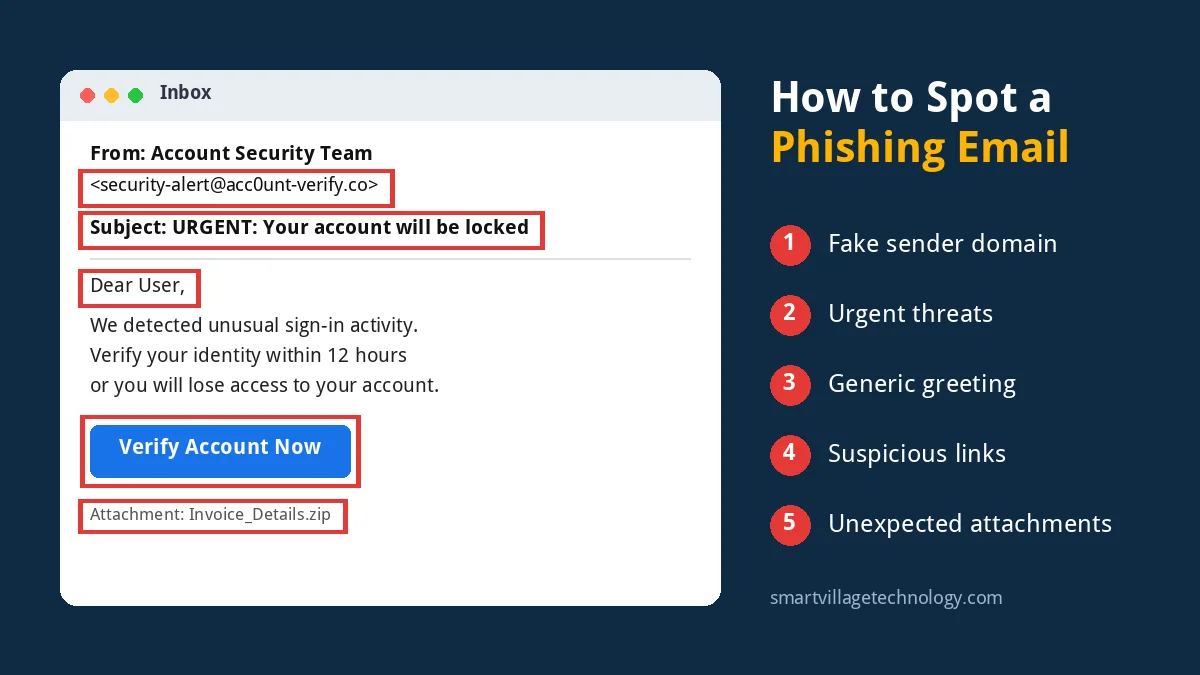
Knowing how to spot a phishing email is one of the most useful security skills you can have, because email is still the front door for most cyberattacks. A single click on the wrong link can hand over your password, install malware, or trick your finance team into paying a fake invoice. The good news is that phishing emails almost always leave clues. Once you know what to look for, most of them become easy to catch.
In this guide, we break down the warning signs of a phishing email, walk through real phishing attacks that fooled major organisations, and explain exactly what to do if you receive one (or accidentally click).
What Is a Phishing Email?
A phishing email is a message designed to look like it comes from someone you trust, such as your bank, a delivery company, Microsoft, Google, or even your own boss. Its goal is to get you to do something that benefits the attacker. That usually means one of four things:
- Entering your login details on a fake website.
- Opening an attachment that installs malware.
- Sending money or paying a fraudulent invoice.
- Sharing sensitive information such as ID numbers, card details, or company data.
Some phishing emails are sent to millions of people at once. Others, known as spear phishing, are carefully crafted for one person or one company using details found online. Either way, the tricks they rely on are remarkably consistent.
How to Spot a Phishing Email: 10 Warning Signs
No single sign proves an email is malicious, but the more of these you see, the more careful you should be.
1. The Sender’s Address Doesn’t Match the Name
The display name might say “PayPal Support” or “Microsoft 365”, but the actual address could be something like [email protected] or a random Gmail account. Always check the full email address, not just the name. On mobile, tap the sender’s name to reveal it.
2. The Domain Is Slightly Off
Attackers register lookalike domains that are easy to misread: rnicrosoft.com (using “rn” instead of “m”), amazon-billing.net, or yourcompany.co instead of yourcompany.com. A legitimate company sends email from its own domain, not a variation of it.
3. It Creates Urgency or Fear
“Your account will be suspended in 24 hours.” “Unusual sign-in detected.” “Final notice: payment overdue.” Phishing emails push you to act before you think. Real organisations rarely threaten immediate consequences by email.
4. Links Point Somewhere Unexpected
Before clicking, hover your mouse over any link (or long-press on mobile) to preview the real destination. If an email claiming to be from your bank links to a shortened URL or an unrelated domain, treat it as suspicious.
5. It Asks for Your Password or Personal Details
Your bank, email provider, and IT department will not ask you to confirm your password, PIN, or full card number by email. Any message that does should be treated as phishing until proven otherwise.
6. Unexpected Attachments
Be wary of attachments you weren’t expecting, especially invoices, “scanned documents”, voicemail files, or anything ending in .zip, .html, .iso, or macro-enabled Office files (.docm, .xlsm).
7. Generic Greetings
“Dear Customer” or “Dear User” can be a clue that the sender doesn’t actually know who you are. That said, targeted attacks often use your real name, so a personal greeting is not proof of safety.
8. Spelling, Grammar, and Formatting Problems
Odd phrasing, blurry logos, and inconsistent fonts are classic red flags. Be aware, though, that AI writing tools now let attackers produce polished emails, so good grammar alone doesn’t mean a message is genuine.
9. A Change in Payment Details
An email from a “supplier” saying their bank account has changed is one of the most expensive scams in business. Always verify new payment details by phone, using a number you already have on file.
10. It Just Feels Off
A request that is out of character, sent at an odd hour, or bypasses normal procedures deserves a second look. Trust that instinct and verify through another channel.
Real Phishing Email Examples
Real incidents show how these warning signs play out in practice. Each of the examples below fooled smart people inside well-resourced organisations.
Example 1: The “Someone Has Your Password” Email (2016)
In March 2016, John Podesta, then chairman of Hillary Clinton’s presidential campaign, received an email that appeared to be a Google security alert. It warned that someone had used his password to try to sign in and offered a “Change password” button.
The button actually led through a shortened link to a fake Google login page. Once credentials were entered, the attackers gained access to his Gmail account, and thousands of emails were later published online.
Red flags: a security alert that creates urgency, a button link that did not point to a real google.com address, and a sender address that was not an official Google domain.
Example 2: The $100 Million Fake Invoice Scam (2013 to 2015)
Between 2013 and 2015, a Lithuanian man named Evaldas Rimasauskas tricked employees at Google and Facebook into wiring more than $100 million to bank accounts he controlled. He did it by posing as Quanta Computer, a real Taiwanese hardware supplier both companies worked with.
He registered a company with the same name, sent convincing invoices and contracts from email accounts that appeared to belong to Quanta, and asked for payment to his own accounts. He was later caught and, in 2019, sentenced to five years in prison.
Red flags: payment requests to unfamiliar bank accounts and sender domains that did not exactly match the real supplier. A simple phone call to a known contact at the supplier would have exposed the fraud.
Example 3: The Fake “Google Docs” Share (2017)
In May 2017, a wave of emails spread rapidly across Gmail users. Each message said a contact had shared a Google Doc with them. Clicking the button took people to a genuine Google page asking them to grant access to an app called “Google Docs”.
The app was not Google’s. Anyone who approved it gave the attacker access to their email and contacts, and the same message was then sent to everyone in their address book. Google shut it down within about an hour, but it reached an estimated one million accounts.
Red flags: an unexpected share, a strange recipient list, and a permissions screen asking an app to read and send email. The lesson: even a real login or permission page can be abused, so pay attention to what you are approving.
Example 4: The “Missed Delivery” Notice
One of the most common phishing emails today claims to be from DHL, FedEx, a national postal service, or a courier you have never used. It says a parcel could not be delivered and asks you to confirm your address or pay a small redelivery fee.
The link leads to a fake payment page that captures your card details. Because the fee is small, many people pay without thinking.
Red flags: you are not expecting a parcel, the tracking number is missing or generic, and the payment link points to a domain that has nothing to do with the courier.
Example 5: The “Your Password Expires Today” Microsoft 365 Email
Businesses see this constantly. An email styled like a Microsoft 365 notice says your password is about to expire, your mailbox is full, or you have a new voicemail. A button asks you to “Keep current password” or “Review now”.
The page that opens looks exactly like the Microsoft sign-in screen, but the web address is not login.microsoftonline.com. Some versions even pre-fill your email address to seem more convincing.
Red flags: check the address bar before typing any password. If the domain isn’t Microsoft’s, close the page.
Example 6: The CEO Gift Card Request
An employee receives a short, friendly email from someone who appears to be the CEO: “Are you available? I need a quick favour. Please don’t call, I’m in a meeting.” The follow-up asks them to buy gift cards for “clients” and send the codes.
Red flags: a personal Gmail address instead of the company domain, a request to keep it secret, and pressure to avoid a phone call. Gift cards are a favourite of scammers because they are nearly impossible to trace or recover.
Anatomy of a Phishing Email
Here is an illustrative example that combines several common tricks. See how many warning signs you can find before reading the breakdown.
From: Microsoft Account Team <[email protected]>
Subject: URGENT: Unusual sign-in activity detectedDear User,
We detected a sign-in attempt to your account from an unrecognised device. If this was not you, your account will be locked within 12 hours.
Please verify your identity immediately to avoid losing access to your emails and files.
[Verify Account Now]
Microsoft Security Team
What gives it away:
- The domain uses a zero instead of an “o” (micros0ft) and is not an official Microsoft domain.
- “URGENT” in the subject line and a 12-hour deadline create pressure.
- “Dear User” is a generic greeting.
- The button asks you to “verify” by signing in through a link, instead of telling you to go to your account directly.
- There are no specific details, such as the location or device of the sign-in.
What to Do If You Receive a Phishing Email
If something looks suspicious, follow these simple steps:
- Don’t click, reply, or download. Leave the email alone until you are sure it is safe.
- Verify independently. Contact the company or person using a phone number or website you already know, not the details in the email.
- Report it. Use the “Report phishing” option in Outlook or Gmail, and forward it to your IT or security team if you are at work. You can also forward phishing emails to the Anti-Phishing Working Group at [email protected].
- Delete it once it has been reported.
What to Do If You Already Clicked
Mistakes happen, even to experienced people. Acting quickly limits the damage:
- Change your password immediately on the affected account, and on any other account that uses the same password.
- Turn on multi-factor authentication (MFA) if it isn’t already enabled. It can stop an attacker even if they have your password.
- Disconnect from the network if you opened an attachment, and run a full antivirus scan.
- Contact your bank straight away if you entered card or banking details.
- Tell your IT team. Reporting early helps them protect colleagues who may have received the same email.
- Review connected apps in your Google or Microsoft account and remove anything you don’t recognise.
How to Protect Yourself and Your Organisation
Spotting phishing is a skill, but good habits and the right tools reduce your risk even further:
- Enable multi-factor authentication everywhere, especially on email, banking, and cloud accounts.
- Use a password manager. It will only auto-fill your password on the real website, which makes fake login pages easier to notice.
- Keep software updated so attachments can’t exploit known vulnerabilities.
- Set up email authentication (SPF, DKIM, and DMARC) on your company domain to make it harder for attackers to impersonate you.
- Train your team regularly with short refreshers and simulated phishing exercises.
- Create a payment verification policy that requires a phone call before any change to bank details is accepted.
Conclusion
Learning how to spot a phishing email comes down to slowing down and checking the details: who sent it, where the links really go, and whether the request makes sense. The real examples above show that phishing works not because victims are careless, but because attackers are good at creating pressure and borrowing trust.
When in doubt, verify through another channel, report the message, and never enter your password from a link in an email. Combined with multi-factor authentication and regular awareness training, these habits will stop the vast majority of phishing attacks before they cause any harm.
Need help strengthening your organisation’s email security or training your team? Get in touch with Smart Village Technology to find out how we can help.