
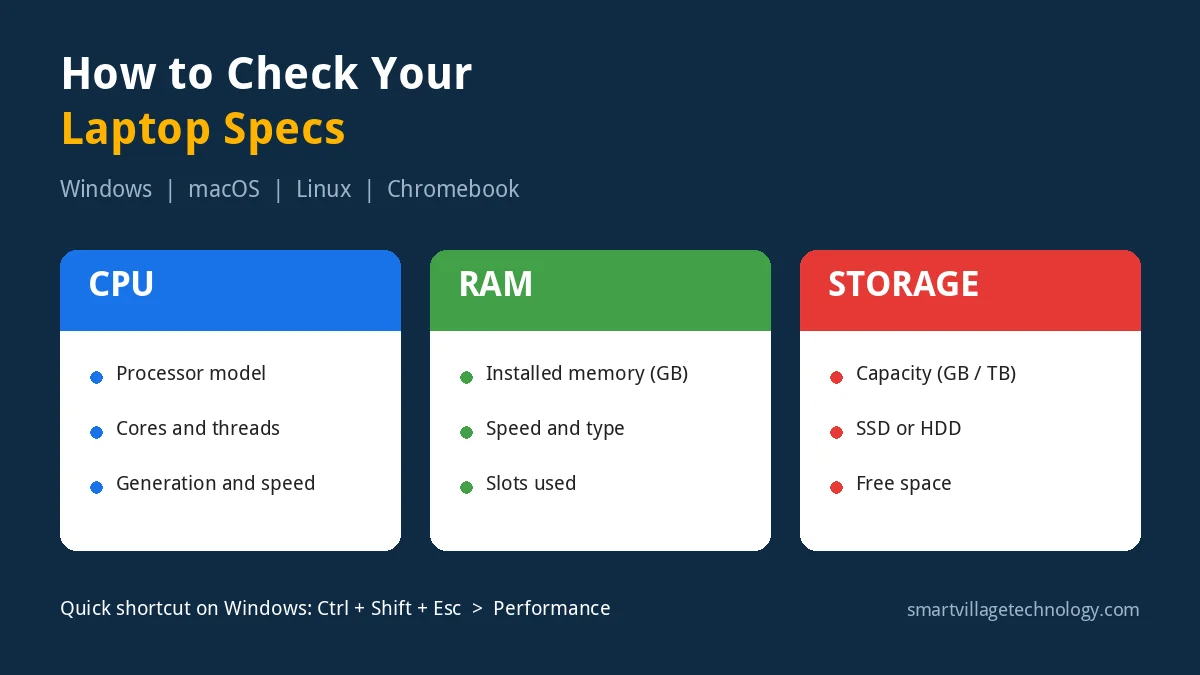
Knowing how to check your laptop specs saves you time and money, whether you are installing new software, troubleshooting a slow machine, planning an upgrade, or selling your laptop. The three specs most people need are the processor (CPU), memory (RAM), and storage, and every major operating system lets you find them in under a minute.
This guide shows you exactly where to look on Windows, macOS, Linux, and Chromebooks, using both simple menus and quick commands. It also explains what the numbers mean, so you can tell whether your laptop is up to the job.
Why You Should Know Your Laptop Specs
Your laptop’s specifications determine what it can handle comfortably. Checking them is useful when you need to:
- Confirm software requirements before installing an app, game, or operating system update.
- Diagnose slow performance, for example when too little RAM is causing constant lag.
- Plan an upgrade, such as adding more memory or swapping a hard drive for an SSD.
- Get support faster, since IT technicians usually ask for your model and specs first.
- Sell or buy a used laptop and make sure the listing matches the real hardware.
The Three Specs That Matter Most
Before you start, here is a quick summary of what you are looking for:
- CPU (processor): the “brain” of the laptop. Look for the brand, model, and generation, for example Intel Core i5-1335U or AMD Ryzen 5 7530U.
- RAM (memory): short-term working memory, measured in gigabytes (GB). More RAM lets you run more apps and browser tabs at once.
- Storage: where your files and programs live. Note both the capacity (for example 512 GB) and the type (SSD or HDD).
How to Check Your Laptop Specs on Windows 11 and 10
Windows offers several ways to see your hardware. Start with the first method; use the others if you need more detail.
Method 1: Settings (Quickest)
- Press Windows + I to open Settings.
- Go to System, then scroll down and click About.
- Under Device specifications, you will see your Processor, Installed RAM, and System type (64-bit or 32-bit).
Shortcut: press Windows + Pause/Break on keyboards that have that key to jump straight to this page.
Method 2: Task Manager (Best for RAM and Storage Type)
- Press Ctrl + Shift + Esc to open Task Manager.
- Click the Performance tab.
- Select CPU to see the processor name, base speed, cores, and logical processors.
- Select Memory to see total RAM, speed, how many slots are used, and the form factor.
- Select each Disk to see whether it is an SSD or HDD and its capacity.
The “Slots used” figure is especially helpful. If it says 1 of 2, you have a free slot and may be able to add more RAM. If there is no slot information, the memory may be soldered to the motherboard.
Method 3: System Information (Full Details)
- Press Windows + R, type
msinfo32, and press Enter. - The System Summary page lists your laptop’s manufacturer, model, processor, BIOS version, and installed physical memory.
This is the page to screenshot if a support technician asks for your system details.
Method 4: Check Storage in Settings or File Explorer
- Go to Settings > System > Storage to see used and free space, plus what is taking up room.
- Or open File Explorer and click This PC to see each drive’s capacity.
Method 5: PowerShell Commands
If you prefer commands, open PowerShell and run any of these:
- Processor:
Get-CimInstance Win32_Processor | Select-Object Name, NumberOfCores, NumberOfLogicalProcessors - RAM modules:
Get-CimInstance Win32_PhysicalMemory | Select-Object Manufacturer, Capacity, Speed - Drives:
Get-PhysicalDisk | Select-Object FriendlyName, MediaType, Size - Everything at once:
systeminfo
Capacity and size values are shown in bytes. Divide by 1,073,741,824 to convert to GB, or simply rely on the Task Manager view.
How to Check Laptop Specs on a Mac
About This Mac
- Click the Apple menu in the top-left corner.
- Choose About This Mac.
- You will see your model (for example MacBook Air, 13-inch, M2, 2022), Chip or Processor, Memory, and macOS version.
Storage on a Mac
On macOS Ventura and later, open System Settings > General > Storage. On older versions, click the Storage tab inside About This Mac.
System Report for More Detail
From About This Mac, click More Info and then System Report. This shows detailed hardware data, including the number of CPU cores, memory type, and storage details.
Terminal Commands for Mac
system_profiler SPHardwareDataTypeshows the model, chip, cores, and memory.df -hshows disk capacity and free space.
Note that memory on all Apple silicon Macs (M1 and later) is built into the chip, so it cannot be upgraded after purchase.
How to Check Laptop Specs on Linux
Most desktop environments show a summary under Settings > About (or System > About). For full details, open a terminal and use these commands:
lscpufor processor model, cores, and threads.free -hfor total and available RAM.lsblkfor drives and partitions. Add-d -o NAME,SIZE,ROTAto see whether a drive spins (ROTA 1 is an HDD, 0 is an SSD).df -hfor used and free disk space.sudo dmidecode -t memoryfor RAM slots, speed, and type.
How to Check Specs on a Chromebook
- Open the Diagnostics app (search for it in the launcher) to see CPU, memory, and battery details.
- Or type
chrome://systemin the browser address bar for a full hardware list. - For storage, open the Files app, click the three-dot menu, and check the available space at the bottom.
Understanding Your Laptop Specs
Finding the numbers is only half the job. Here is how to make sense of them.
Reading Your CPU Name
Processor names follow a pattern. Take Intel Core i7-1355U:
- Core i7 is the performance tier (i3, i5, i7, i9, from basic to high-end). Newer Intel chips use Core 5, Core 7, and Core Ultra names.
- 13 is the generation. Higher usually means newer.
- U is the suffix. U means low-power for long battery life, while H or HX means high performance.
AMD works similarly: Ryzen 3, 5, 7, 9 for tiers, followed by a model number such as 7530U. Apple uses M1, M2, M3, and so on, with Pro and Max versions for heavier workloads.
Also note the cores and threads. More cores help with multitasking, video editing, and other demanding work.
How Much RAM Do You Need?
- 4 GB: struggles with modern Windows; suitable only for very light tasks or Chromebooks.
- 8 GB: fine for browsing, email, and office work.
- 16 GB: the comfortable choice for most people, including heavy multitasking and light creative work.
- 32 GB or more: for video editing, virtual machines, software development, and large datasets.
Memory type (DDR4, DDR5, LPDDR5) and speed also affect performance, but capacity usually matters most for everyday use.
SSD vs HDD Storage
A solid-state drive (SSD) is much faster than a traditional hard disk drive (HDD). Laptops with SSDs boot in seconds and open apps quickly. If your laptop still uses an HDD, upgrading to an SSD is often the single best improvement you can make.
NVMe SSDs are faster again than SATA SSDs, which matters mainly when moving large files.
Why Your Storage Looks Smaller Than Advertised
A 512 GB drive typically shows as about 476 GB in Windows. This is not a fault. Manufacturers count 1 GB as 1,000,000,000 bytes, while Windows counts it as 1,073,741,824 bytes. The operating system and recovery partitions also take up some space.
How to Find Your Exact Laptop Model
Knowing the exact model helps you find compatible upgrades and drivers. You can find it:
- In System Information (
msinfo32) under System Model on Windows. - On the label underneath the laptop or inside the battery compartment.
- In About This Mac on a MacBook.
- With the PowerShell command
Get-CimInstance Win32_ComputerSystem | Select-Object Manufacturer, Model.
Once you have the model, the manufacturer’s support page will list the maximum supported RAM and compatible storage.
Quick Tips Before You Upgrade
- Check whether RAM is soldered. Many thin laptops have memory fixed to the motherboard, which cannot be upgraded.
- Match the RAM type and speed listed in Task Manager or your manufacturer’s specifications.
- Back up your data before replacing a drive.
- Check your warranty. Opening the laptop may affect it on some models.
- Ask a technician if you are unsure. A quick check can prevent buying the wrong part.
Bonus: Check Your Graphics Card (GPU)
If you edit photos or video, play games, or use design software, your graphics card matters too. Most everyday laptops use integrated graphics built into the processor, while gaming and workstation laptops add a dedicated GPU.
- Windows: open Task Manager, go to Performance, and select GPU. You can also press Windows + R, type
dxdiag, and open the Display tab. - Mac: About This Mac shows the graphics details. On Apple silicon Macs, the GPU is part of the chip.
- Linux: run
lspci | grep -i vgain a terminal.
Common Questions When Checking Laptop Specs
Why does my RAM show less than installed?
If Windows shows something like “16 GB (15.7 GB usable)”, part of the memory is reserved for integrated graphics and hardware. This is normal.
Can I check specs without turning on the laptop?
Yes. Look for the model number on the sticker underneath, then search for it on the manufacturer’s website to see the original specifications. Keep in mind that a previous owner may have upgraded the RAM or storage.
Is my laptop fast enough for Windows 11?
Windows 11 needs a supported 64-bit processor, at least 4 GB of RAM, 64 GB of storage, and TPM 2.0. Microsoft’s PC Health Check app will confirm compatibility for you.
Conclusion
Now you know how to check your laptop specs on any major operating system. On Windows, Settings > System > About and Task Manager give you almost everything. On a Mac, About This Mac is all you need, and on Linux, a few terminal commands reveal the full picture.
With your CPU, RAM, and storage details in hand, you can make informed decisions about software, troubleshooting, and upgrades, and avoid spending money on parts or programs that don’t fit your machine.
Need help choosing the right upgrade or setting up laptops for your team? Contact Smart Village Technology for practical, reliable IT support.